Large Language Models
The Large Language Models (LLM) component manages how AI systems interact with Timbr’s ontology-based semantic layer.
LLMs in Timbr operate on top of the virtual knowledge graph, enabling AI-driven use cases such as NL2SQL, GraphRAG, and agent-based workflows. Users can add, edit, and manage LLM provider connections, configure credentials, and adjust model parameters such as temperature and additional settings.
Any AI-enhanced operation in Timbr uses an active LLM configuration. Users can select their own LLM if they have access to multiple configurations, or use the LLM assigned by an administrator.
Timbr supports plan-based limits on the number of LLM configurations - an upgrade prompt is shown when the configured limit has been reached.
Supported LLM Providers:
Timbr supports integration with the following LLM providers:
- OpenAI
- Anthropic
- Azure OpenAI
- Snowflake
- Databricks
- Google Vertex AI
- Amazon Bedrock
- Timbr
More providers can be added upon request
Manage LLMs
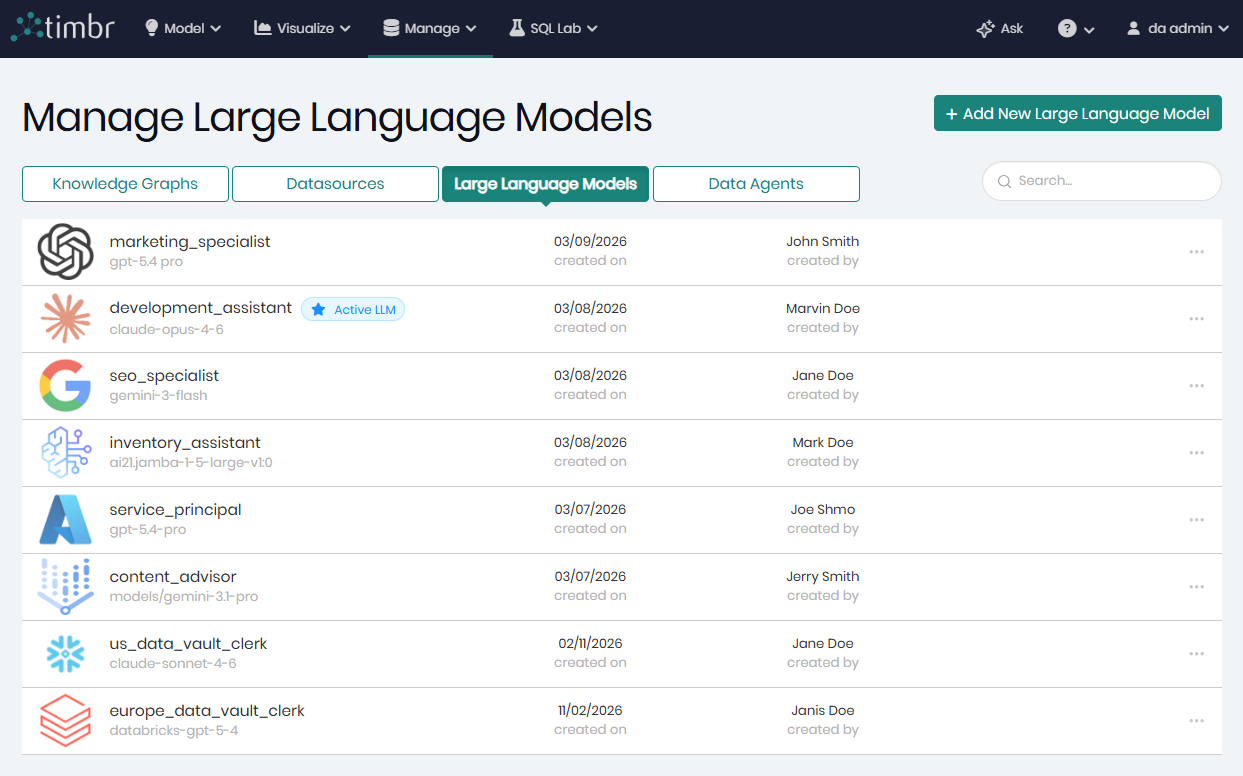
All available LLM attached to the Timbr ecosystem can be found in Manage Large Language Model, page which can be accessed through the Manage tab by clicking on Large Language Models.
Adding a new LLM
On the top right is Add New LLM that when clicked on will open a pop-up in order to begin adding a new LLM configuration to the environment.
When Add New LLM is clicked, a pop-up window will appear where all the relevant configuration details must be provided in order to connect the LLM provider to the environment.
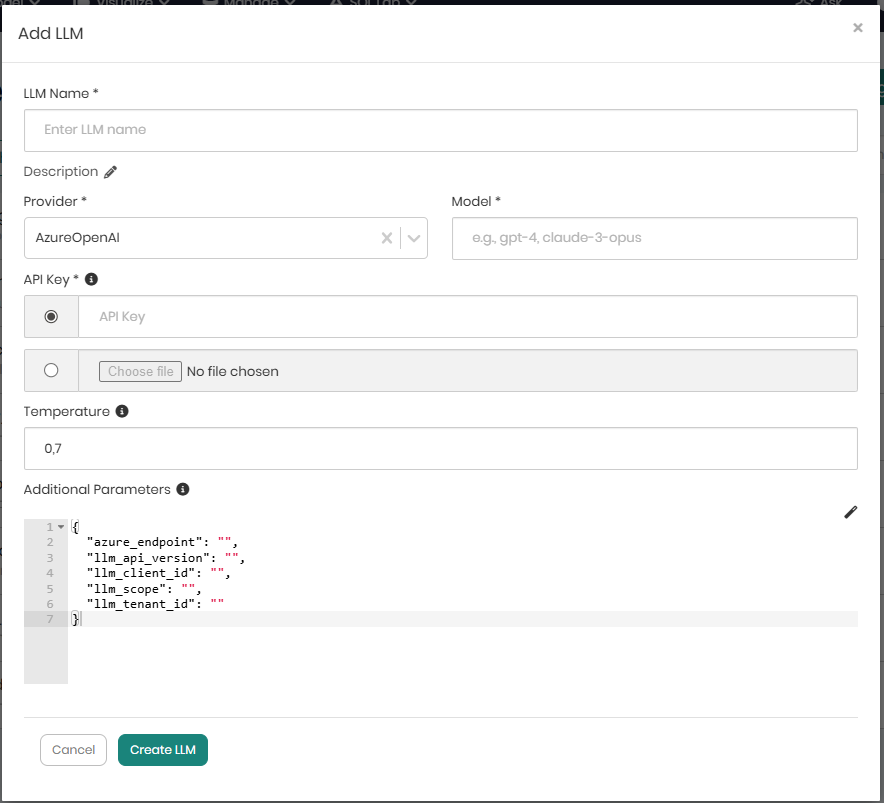
The following information is required when adding a new LLM configuration:
| Field | Required | Description |
|---|---|---|
| LLM Name | ✓ | A unique identifier for the LLM. Only alphanumeric characters, underscores, and hyphens are allowed. The name cannot be changed after creation. |
| Description | - | An optional description of the LLM configuration. |
| Provider | ✓ | The LLM provider to connect to (e.g., OpenAI, Anthropic, Azure OpenAI). |
| Model | ✓ | The model name as defined by the provider (e.g., gpt-4o, claude-3-opus-20240229). |
| API Key | ✓ | The authentication key for the provider. Can be entered directly or uploaded from a file. API keys are encrypted and stored securely. |
| Temperature | - | Controls the randomness of model output. Accepts a value between 0 and 2 (default: 0.7). |
| Additional Parameters | - | Optional provider-specific configuration in JSON format. Auto-populates with provider defaults when the provider is changed. |
When the Provider field is changed, the Additional Parameters JSON editor automatically updates with the default configuration template for the newly selected provider.
The API Key field supports file upload - when a key file is selected, its contents are read and populated into the field automatically.
The Additional Parameters field uses an embedded JSON editor with syntax highlighting and a beautify option to help format complex configurations.
When all details are entered, Create LLM must be clicked in order to save the configuration and register the LLM with the environment.
Editing an existing LLM
Each LLM row contains 3 horizontal dots on the right that when clicked on offer the following additional options on the selected LLM:

Edit - Opens a window to edit the selected LLM configuration. The LLM name is read-only and cannot be changed after creation.
Set Active - Marks this LLM as the active LLM for the current user. Only one LLM can be active at a time. This will affect all AI operations used in the Timbr ecosystem for the user.
Test Connection - Executes a quick connectivity test to verify the LLM provider API key and endpoint are valid and responsive.
Delete - Permanently removes the selected LLM configuration.
When editing an existing LLM, the API Key field does not display the stored key in plaintext. To update the key, enter or upload a new value. If left blank, the existing key is retained.