Ask
Ask ( Ask Timbr ) is the AI-powered natural language interface for querying Timbr’s ontology-based semantic layer. Users can ask questions in plain language, and the system interprets intent, generates SQL on top of the virtual knowledge graph, executes the query, and presents results as tables or charts within a conversational experience.
Ask Timbr supports multiple knowledge graphs and custom data agents, persistent chat sessions, SQL editing and re-execution, step-by-step thought process visibility, and flexible query configuration options.
Ask Timbr can be accessed from the main navigation.

Interface Layout
The Ask Timbr interface is divided into three resizable panels:
| Panel | Location | Purpose |
|---|---|---|
| Session Sidebar | Left | Browse, create, rename, export, and delete chat sessions |
| Chat Area | Center | Compose messages, view AI responses, explore query results |
| Options Panel | Right | Configure the knowledge graph, agent, and query behavior |
Each panel can be resized by dragging its edge handle. The Options panel can be fully collapsed to maximize the chat area.
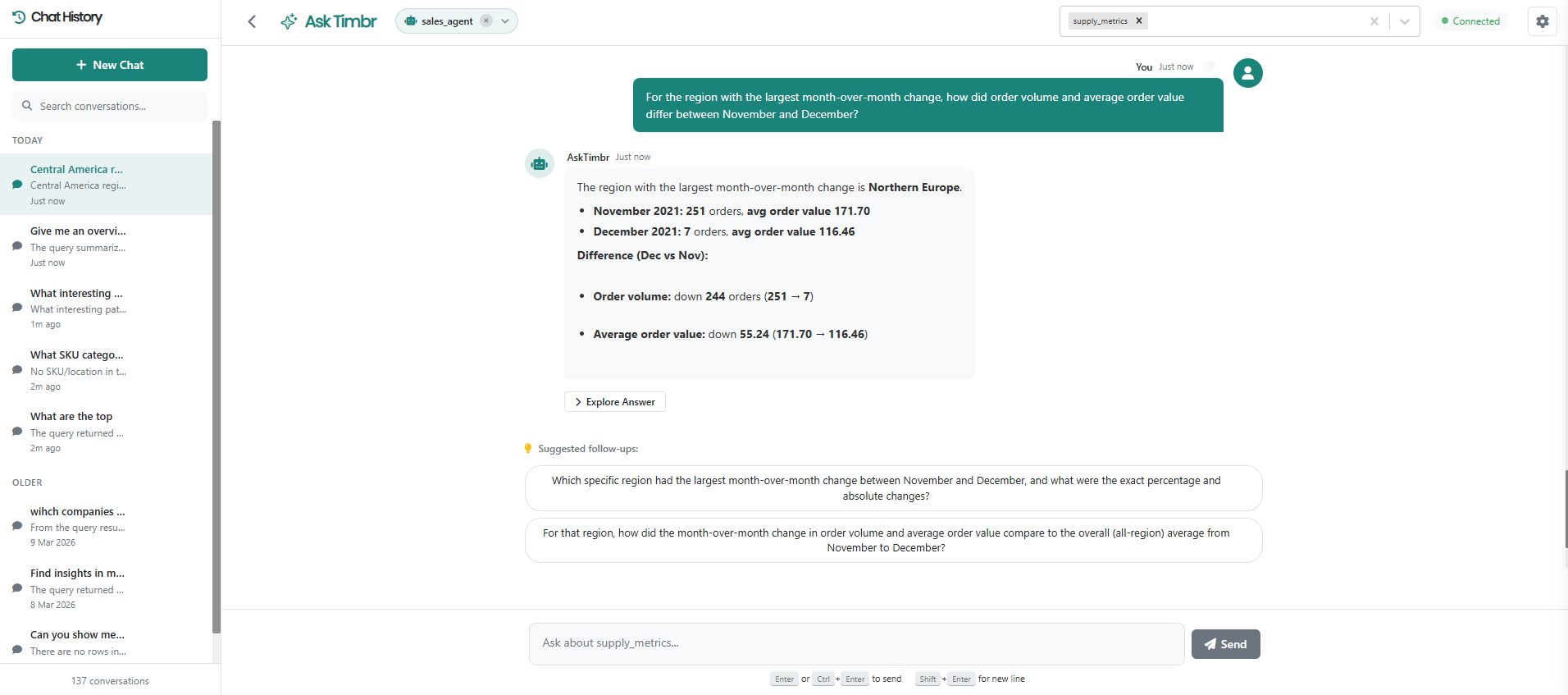
Getting Started
Before sending a query, a Knowledge Graph must be selected from the Options panel on the right. If no knowledge graph is selected, the chat area will prompt you to choose one.
Once a knowledge graph is selected, a welcome message and a set of suggested starter questions appear. Click any suggestion to send it immediately.
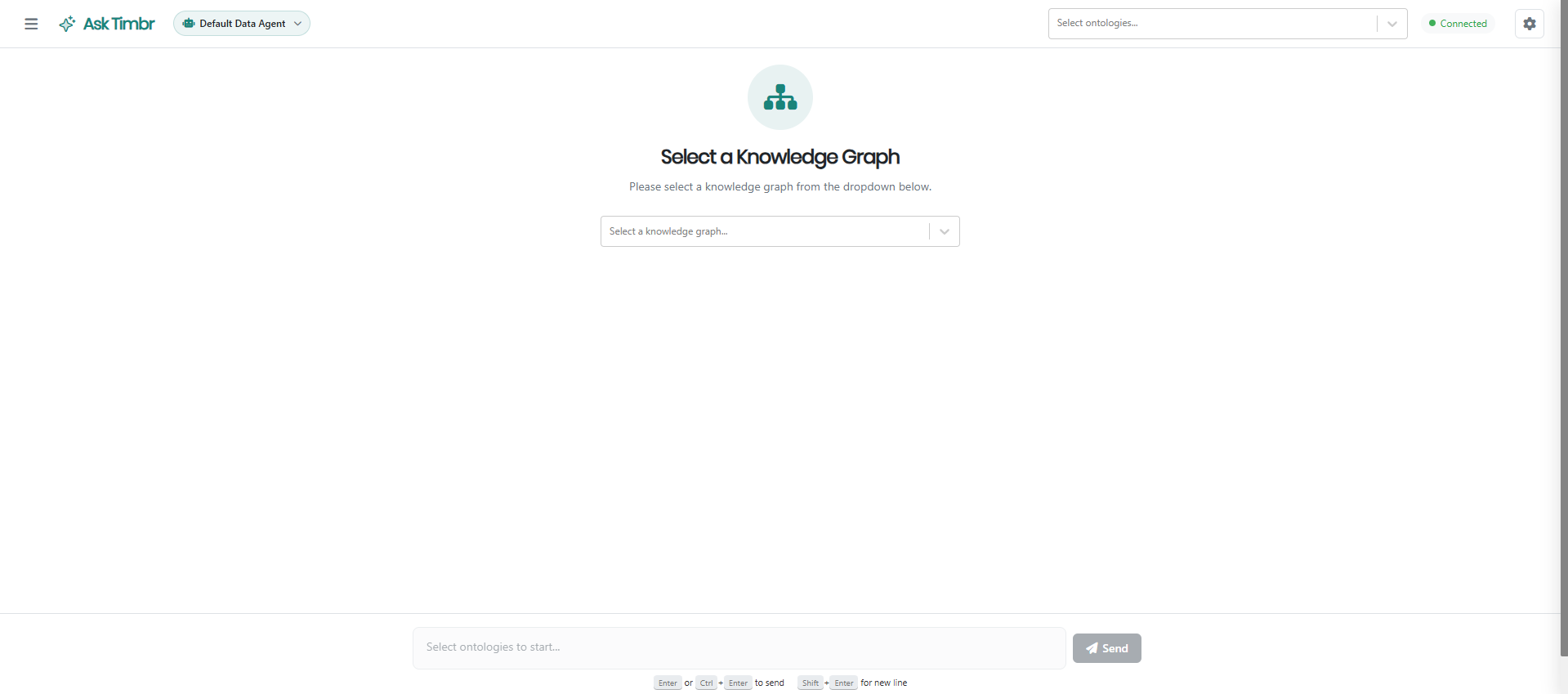
Sending Queries
Type a natural language question in the input area at the bottom of the chat. Press Enter (or Ctrl+Enter) to send. Use Shift+Enter to insert a line break without sending.
While a query is being processed, a Cancel button appears. Click it or press Escape to stop the current request.
A character counter appears near the input when the message approaches the maximum length, and a warning is shown when fewer than 100 characters remain.

Follow-Up Suggestions
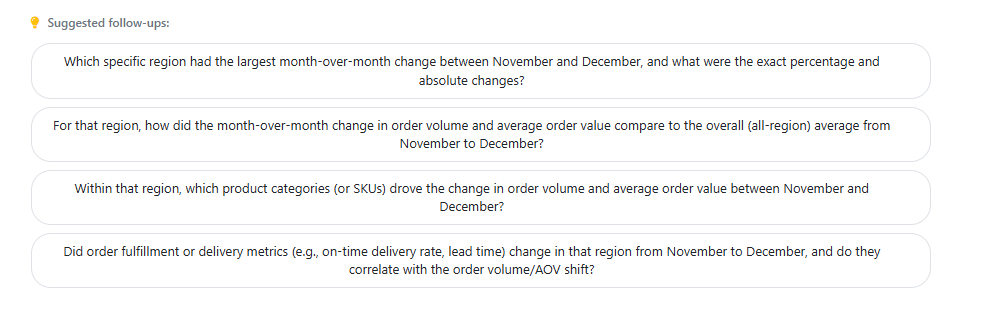
After each AI response, up to four clickable follow-up suggestions appear below the answer. Clicking a suggestion automatically fills the input and sends the query.
Query Results
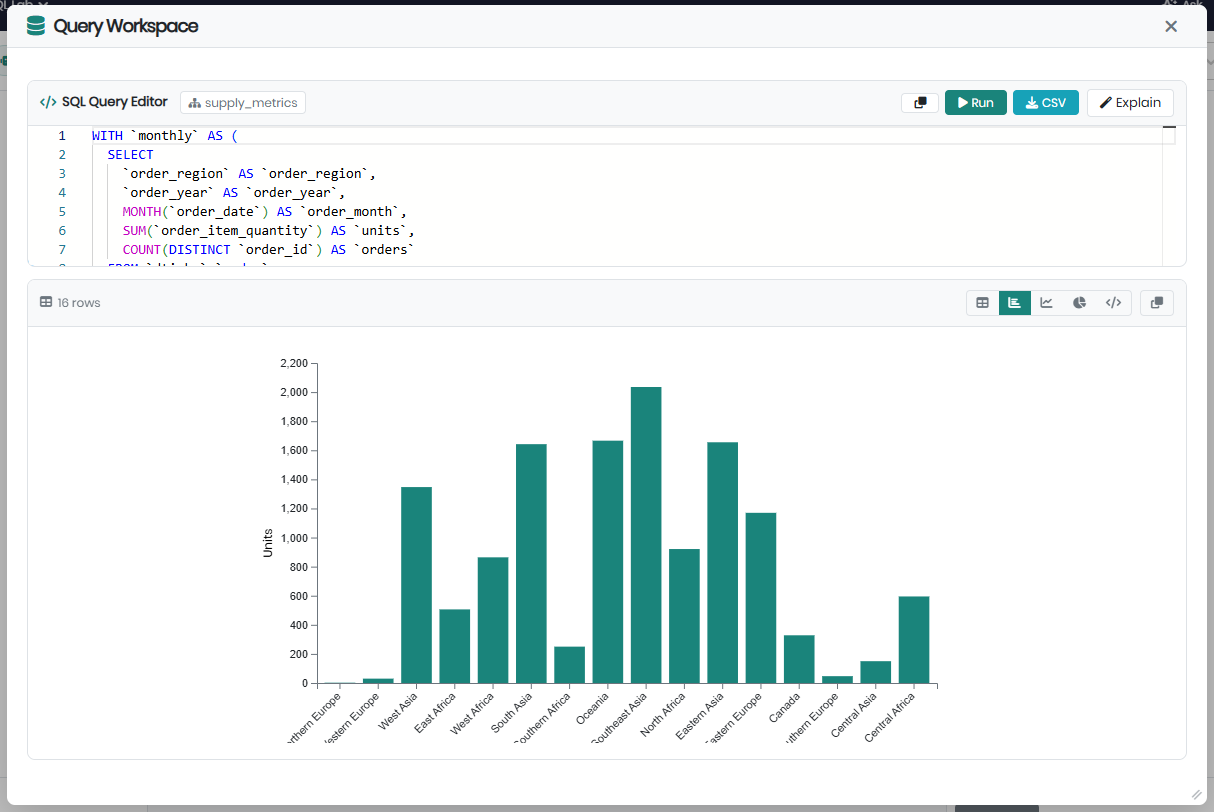
When the AI returns an answer, a Query Workspace is embedded in the message. Click Explore Answer to expand it.
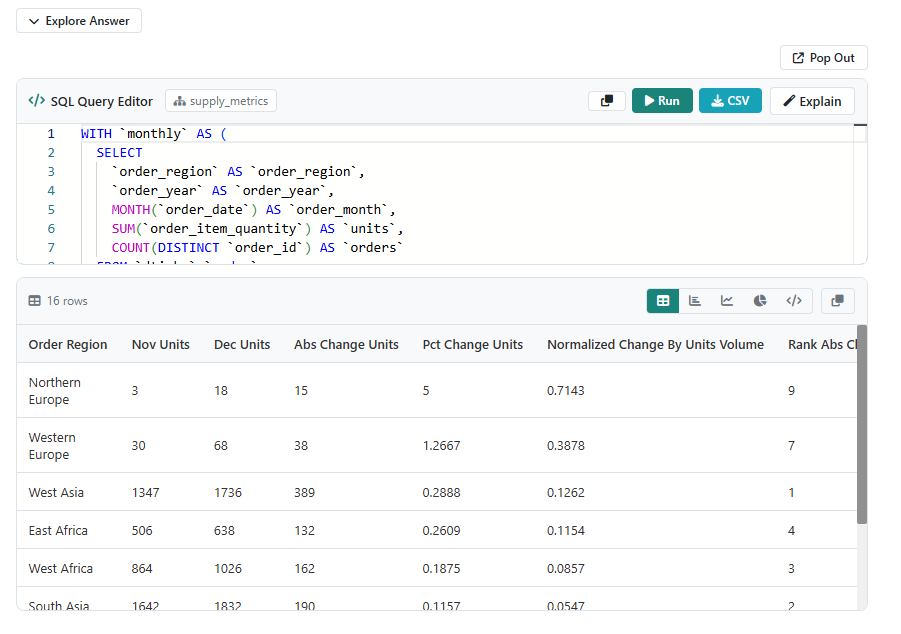
Table View
Results are displayed in a sortable, paginated table.
- Click a column header to sort ascending; click again to sort descending.
- Use the pagination controls (First / Previous / Next / Last) to navigate through rows.
NULLvalues are shown in gray. Booleans are shown astrue/false.
Chart View
When the result set is suitable for visualization, a chart view is available alongside the table. Supported chart types are bar, line, and pie. Column selectors allow you to choose the X and Y axes.
Editing & Re-executing SQL
The generated SQL is displayed in an embedded editor. The SQL can be manually edited and re-executed by clicking Run. An ongoing query can be stopped with the Cancel button.
Downloading Results
Click Download in the Query Workspace to export the current result set as a CSV file.
Pop Out
Click Pop Out to open the Query Workspace in a large resizable modal, giving more room to edit SQL and browse results.
Session Management
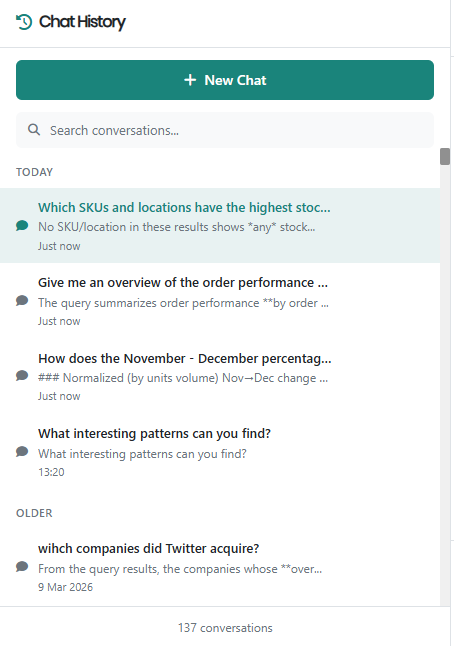
All chat sessions are listed in the left sidebar. Each entry shows the session name, a preview of the last message, and a timestamp. Sessions are automatically saved to the browser's local storage and persist across page refreshes.
Creating a Session
Click New Chat at the top of the sidebar to start a fresh session.
Loading a Session
Click any session in the sidebar to load it. All messages and options from that session are restored.
Renaming a Session
Click the rename icon on a session entry, edit the name inline, and press Enter to save or Escape to cancel.
Deleting a Session
Click the delete icon and confirm using the checkmark. If the current session is deleted, the most recent remaining session is loaded automatically.
Exporting a Session
Click the export icon on a session entry to download it in one of two formats:
- Markdown (
.md) - Includes all messages formatted with roles and timestamps, SQL in code blocks, and a preview of result tables. - JSON (
.json) - Contains the full session structure for programmatic use.
Options Panel
The Options panel on the right side of the interface controls the knowledge graph selection, agent selection, and all query behavior settings. Each group of settings is described below.
Knowledge Graph
Select one or more knowledge graphs to query. At least one must be selected before a query can be sent. When multiple ontologies are selected, a datasource picker appears in the Query Workspace to specify which one to execute the query against.
Data Agent
Choose an Data agent from the dropdown. A default data agent is available, or you can select a custom agent configured in the Manage Data Agents section.
Each agent comes with its own preset query options. Changing the agent updates all current options to match that agent's defaults. Use Reset to Defaults at any time to revert the current options back to the selected agent's presets.
Concepts & Views
| Setting | Description |
|---|---|
| Exclude all concepts | Prevents the agent from using any concepts when generating queries |
| Concepts to include | Tree selector for choosing specific concepts (grouped by knowledge graph) |
| Exclude all views | Prevents the agent from using any views or cubes |
| Views to include | Tree selector for choosing specific views (grouped by knowledge graph) |
| Properties to exclude | Multi-select for blocking specific properties from query generation |
| Tags to include | Multi-select for filtering the agent's scope to entities with specific tags |
Query Execution
| Setting | Default | Description |
|---|---|---|
| Validate SQL | On | Validates the generated SQL before execution |
| Max results limit | - | Caps the number of rows returned |
| Retry if no results | On | Automatically retries the query if it returns an empty result |
| Max retries | 2 | Maximum number of retry attempts for empty results |
| Reasoning steps | 2 | Number of reasoning iterations (visible when reasoning is enabled) |
Advanced Options
| Setting | Default | Description |
|---|---|---|
| Graph depth | 1 | How many relationship hops the agent traverses in the ontology (1–5) |
| Case sensitive | Off | Enables case-sensitive SQL generation for databases that require it |
| Include logic concepts | Off | Includes concepts that are based on SQL logic in the agent's scope |