Embedding the Graph Explorer
This guide explains how to embed Timbr’s ontology-based semantic layer into external applications by integrating the Graph Explorer UI.
The embedded Graph Explorer reflects the virtual knowledge graph defined in Timbr, allowing external tools and applications to interact with business entities, relationships, and logic through the semantic layer.
This guide explains how to embed the Graph Explorer UI as an iframe into an external web page or BI tool. It covers the required platform settings, how to construct the iframe URL (including token-based authentication), Content Security Policy (CSP) considerations, and troubleshooting tips.
Prerequisites
- You must have administrative access to the Timbr platform environment to change environment variables.
- Know the host/domain name where your Timbr instance is reachable (for example, timbr.example.com).
- A valid Timbr user token (see "Token and authentication" below) with the appropriate permissions to query a knowledge and use the Graph Explorer
Important platform settings
To allow the Graph Explorer to be embedded, Timbr requires a small number of configuration changes. The following environment variables are supported by Timbr to control iframe embedding behaviour.
TIMBR_ALLOW_EMBEDDED_IFRAME- Type: boolean-like (any non-empty value enables embedding)
- Description: When set, Timbr will allow its pages to be framed by other sites (subject to the allowed sources below). If not set, Timbr will send headers that prevent embedding.
TIMBR_ALLOW_EMBEDDED_IFRAME_SOURCES- Type: comma-separated list of origins (scheme + host + optional port)
- Description: Values that will be set into the Content-Security-Policy header's frame-ancestors directive (trusted embedding origins). Example:
https://reports.example.com,https://app.powerbi.com
Notes:
- Use exact origins in
TIMBR_ALLOW_EMBEDDED_IFRAME_SOURCES(for example includehttps://and any required port). Wildcards such as*are not recommended for security reasons. - After changing environment variables you will need to restart Timbr (or reload your container/service) for the settings to take effect.
How embedding works (login with token)
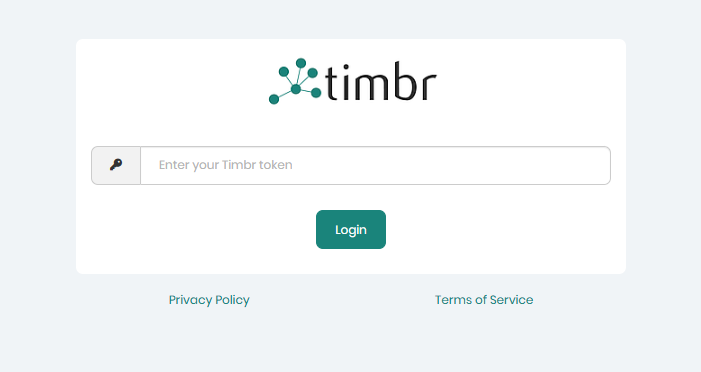
Instead of embedding a page that requires interactive sign-in, Timbr provides a login-by-token endpoint suitable for iframes. The typical pattern is to embed an iframe pointing to /login_with_token/ and provide the user's token and the target path (for example, the saved exploration URL) as query parameters.
Minimal iframe example
<iframe src="https://<your-timbr-host>/login_with_token/" style="width:100%; height:600px; border:0"></iframe>
Troubleshooting
- Browser blocks iframe (CSP violation): Check the browser console for a message mentioning
frame-ancestors. Confirm the origin of the embedding page is inTIMBR_ALLOW_EMBEDDED_IFRAME_SOURCESand that the origin matches exactly (including scheme and port). - Content not loading or authentication denied: Ensure the token is valid, not expired, and has correct permissions. Test the token by calling the Timbr Platform directly.