Vertica
Vertica is a high-performance, massively parallel processing (MPP) SQL database management system designed for big data analytics. It provides fast query performance, scalability, and advanced analytics capabilities, making it a popular choice for data warehouses and analytical workloads.

Integrating Vertica with Timbr allows you to leverage Timbr's semantic graph capabilities while maintaining Vertica's powerful analytics features. This integration enables advanced features like semantic querying, data virtualization, and integrated data management, providing powerful insights and efficiencies.
Getting Started with Vertica
If you haven't yet set up Vertica, follow these steps to get started:
To connect Timbr to your Vertica datasource, you need to use the Vertica JDBC driver. For information on the Vertica JDBC driver and how to set it up, refer to the Vertica JDBC Driver documentation.
Connecting Timbr to Vertica in the Timbr Platform
Once you've set up Vertica and have the JDBC driver ready, it's time to connect Timbr to Vertica. Follow the steps below for a detailed tutorial on connecting Timbr to Vertica:
Navigate to Manage Datasources: From the Timbr interface, click on the Manage tab and select Datasources.
Add New Datasource: On the top right, click the Add New Datasource button. Alternatively, you can click the big add button beneath the knowledge graphs and datasources tabs.

- Fill in Connection Details: A pop-up window will appear where you need to provide the relevant connection details to connect Vertica to Timbr.
There are two options in Timbr to enter the connection information: Simple or JDBC Url.
On the top right of the pop-up window , the toggle can be switched from Simple to JDBC Url in order to connect the datasource using the relevant JDBC URL.
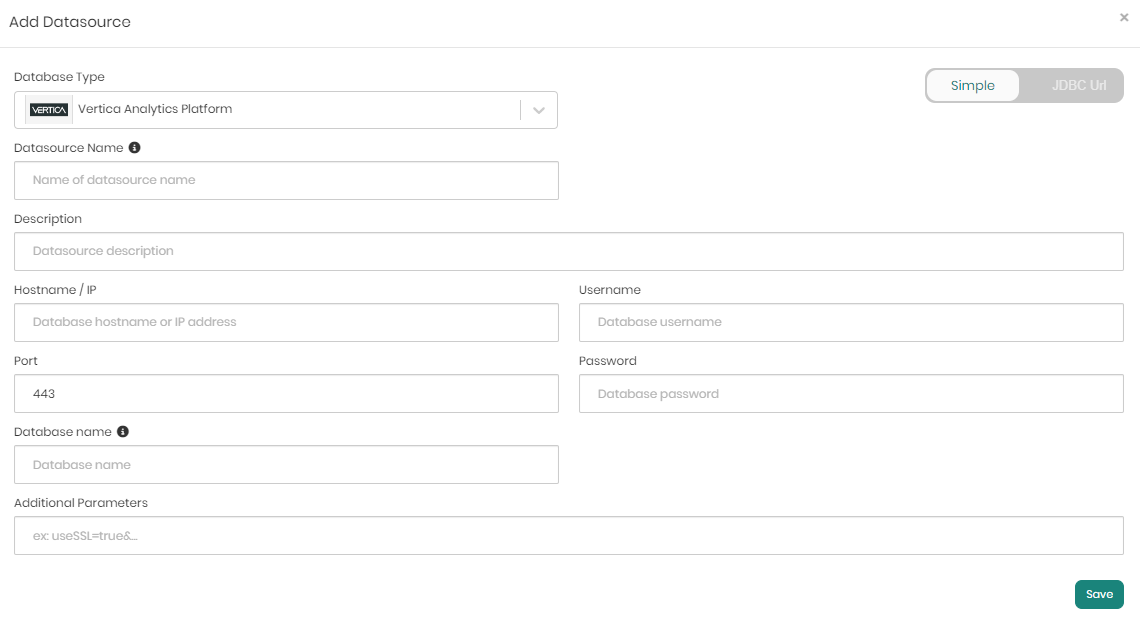
Simple Tab Connection Configuration
Select Simple Tab: Ensure the Simple tab is selected.
Fill in the Following Details:
- Database Type: Select Vertica Analytics Platform.
- Datasource Name: Enter a name for your datasource.
- Description: Provide a description of the datasource (Optional).
- Hostname / IP: Enter the hostname or IP address of the Vertica database.
- Port: Default is 443.
- Username: Enter your Vertica username.
- Password: Enter your Vertica password.
- Database Name: Specify the name of the database.
- Additional Parameters: Add any additional connection parameters using
;
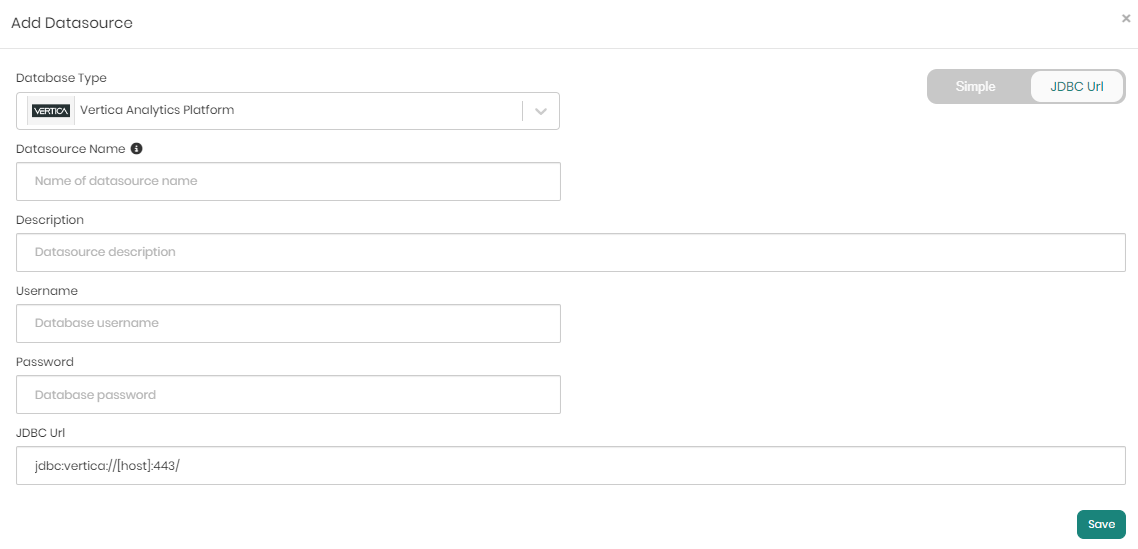
JDBC URL Tab Configuration
Select JDBC URL Tab: Ensure the JDBC URL tab is selected.
Fill in the Following Details:
- Database Type: Select Vertica Analytics Platform.
- Datasource Name: Enter a name for your datasource.
- Description: Provide a description of the datasource (Optional).
- Username: Enter your Vertica username.
- Password: Enter your Vertica password.
- JDBC URL: Enter the JDBC connection URL (e.g.,
jdbc:vertica://[host]:port/).
Save and Test Connection
- After entering the details, click the Save button to save the information, connecting the Vertica datasource to the Timbr environment.
- Once saved, on the top right, click the Test connection button to verify the datasource’s connectivity, ensuring it is active and responsive.
For a comprehensive guide on connecting Timbr to various datasources, refer to the detailed documentation: