Natural Language Queries (NLQ)
Timbr offers a powerful Natural Language Query (NLQ) add-in for Microsoft Excel, allowing users to interact with their data using everyday language. This feature enables you to ask questions about your data based on your organization's ontology terminology.
Getting Started
- Open Microsoft Excel
- Navigate to the "Add-ins" section above
- Search for "Timbr NLQ" in the Add-ins store
- Click Add to install the Timbr NLQ add-in
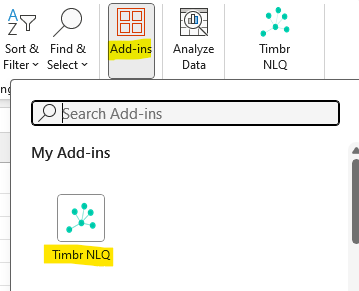
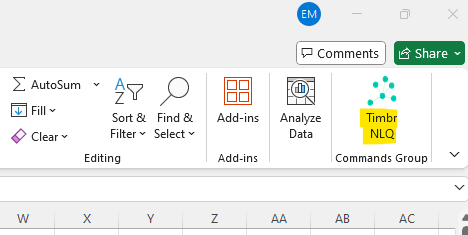
Once installed, you'll see the Timbr NLQ icon in the top right corner of your Excel ribbon.
Connecting to Your Timbr Environment
- Click on the Timbr NLQ icon in the Excel ribbon
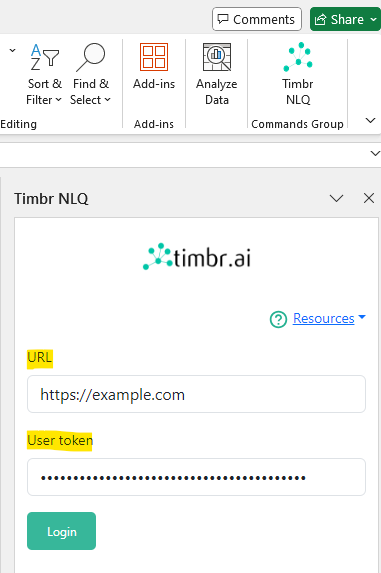
- Enter your Timbr environment URL
- Input your user token (e.g., tk_123456789…..)
- Click Login
Using Natural Language Queries
After logging in:
- Select your desired Knowledge Graph from the dropdown menu
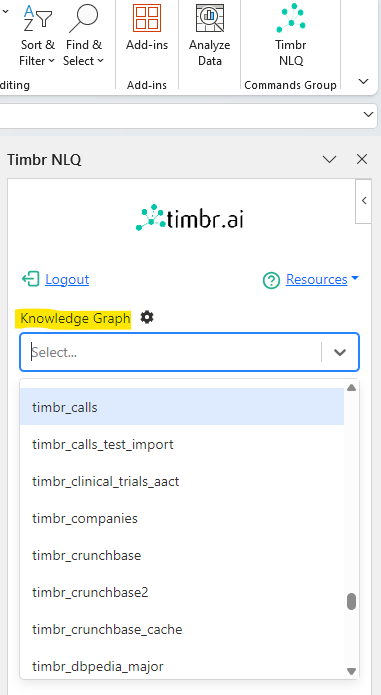
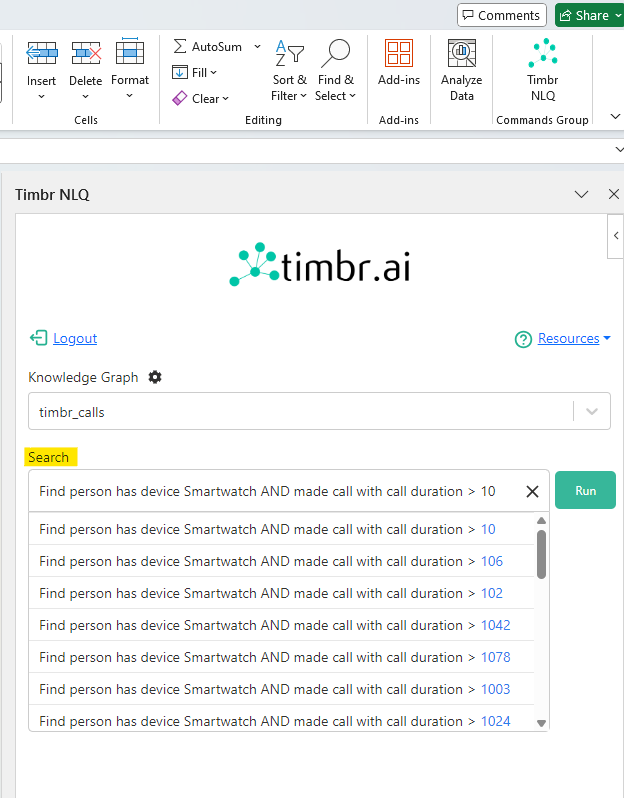
- Once selected begin typing your query in natural language in the search box beginning with 'Find'. Notice that Timbr will offer autocomplete suggestions to help with formulating the query.
- When Finished, click Run to execute the query
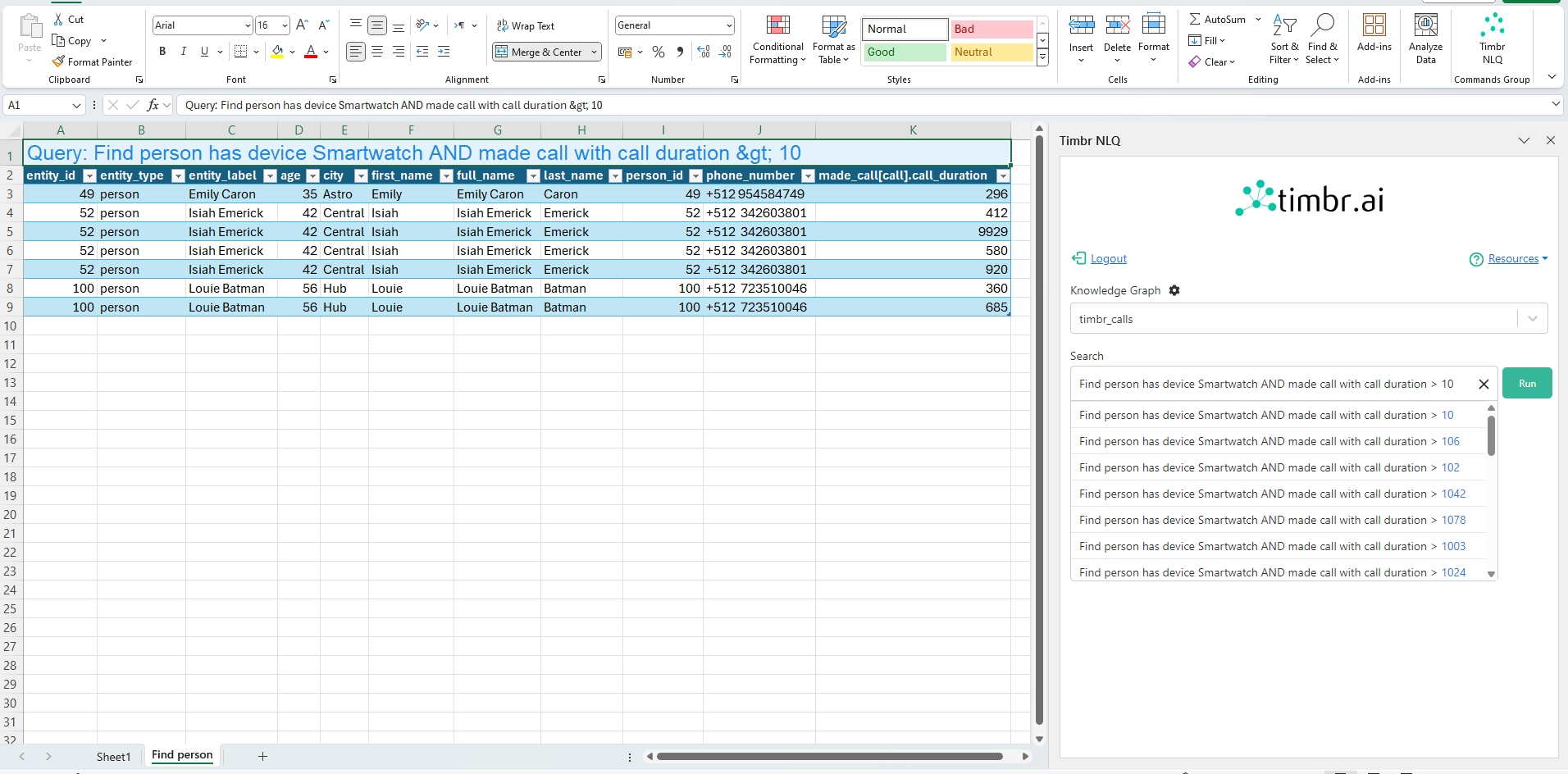
- The results will be displayed in a new Excel sheet, showing the relevant data based on your query
Additional Features
- You can refine your search by modifying the query and running it again. Each Additonal run will open the results in a new tab.
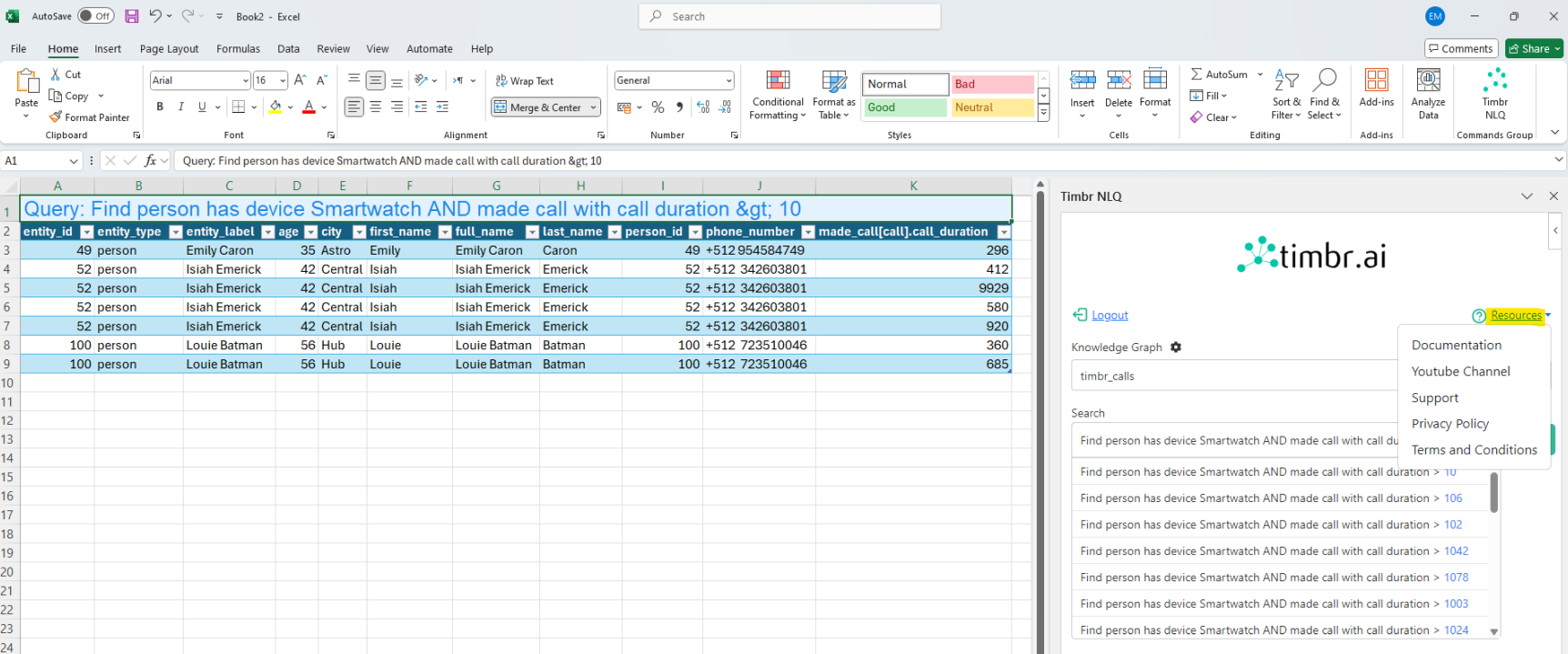
- You can use the Resources button to access additional help and documentation
Tips for Effective Queries
- Use natural language phrases that reflect your data structure and ontology
- Be specific in your queries to get more precise results
- Experiment with different phrasings if you don't get the expected results on the first try
By leveraging Timbr's NLQ functionality in Excel, you can quickly gain insights from your data without the need for complex formulas or programming knowledge.